September 01, 2025


Photo Credit: ChatGPT & Dall-E by OpenAI
Building Agentic Systems with MCP in .NET – Getting Started
The AI ecosystem is evolving rapidly. Large Language Models (LLMs) are no longer just text predictors—they can reason, analyze, and even take actions.
But here’s the challenge: how do we let these models safely and consistently interact with real-world data and tools?
That’s where MCP – Model Context Protocol comes in.
This blog series will walk you through building agentic systems with MCP in .NET, starting from the basics and ending with real-world agent workflows powered by multiple LLMs.
🎯 What This Series Covers
Here’s the roadmap:
-
Episode 1 (this post):
What is MCP, how they differ from APIs, How does MCP actually work, and building a simple first MCP server in .NET and connect and call using a MCP Inspector. -
Episode 2:
Lets use llms and how they easily interact with standard MCP tools and enhance MCP workflows. -
Episode 3:
Going Agentic – using multiple agents with single responsibility. -
Episode 4:
Multiple LLMs, multiple modes – picking the right model for each agent’s task. -
Episode 5:
Real-world use case – connecting booking data, stock availability, and market APIs to build a forecasting system.
By the end, you’ll have a working understanding of MCP and a multi-agentic system you can adapt to your own projects.
Part 1: How MCP Works
Welcome to the first episode of our series “Building Agentic Systems with MCP in .NET.”
In this part we won’t even touch LLMs yet. Instead, we’ll answer:
👉 How does MCP actually work?
We’ll:
- Explain the role of an MCP Server and MCP Client.
- Compare MCP with a typical API.
- Build a simple server in .NET.
- Use MCP Inspector as a client to connect, discover, and call tools.
- Understand the flow of messages.
By the end of this post, you’ll know the mechanics of MCP. Then in Part 2, we’ll talk about why MCP exists (and how LLMs fit into the story).
🔄 MCP in a Nutshell
At its core, MCP is just a protocol for structured communication between:
- Server → Exposes “tools” (functions) you want others to call.
- Client → Connects to the server, discovers the tools, and calls them.
Think of it like JSON-RPC with conventions:
- Tools are described with schemas (inputs & outputs).
- Clients don’t need to read documentation—they can query the server to learn what it supports.
- The transport can be STDIO (pipes), sockets, or HTTP.
🆚 MCP vs. a Typical API
| Feature | REST/GraphQL API | MCP Protocol |
|---|---|---|
| Discovery | Requires docs/Swagger/OpenAPI | Built-in: client asks server |
| Transport | HTTP/HTTPS only | STDIO, WebSocket, HTTP, etc. |
| Schema | Optional / external spec | Always part of the protocol |
| LLM-friendly | Needs glue code / adapters | Native design (structured I/O) |
| Caller | Any app with HTTP | Any MCP-aware client (LLM, IDE, inspector) |
💡 The key difference is: with MCP, clients discover and adapt automatically.
No hand-coded integrations, no brittle JSON responses.
⚙️ Setting Up the Project
We’ll use the official preview SDK from Microsoft: ModelContextProtocol.
Create a new console app
dotnet new console -n McpDemo
cd McpDemo
Add the packages
dotnet add package Microsoft.Extensions.Hosting --version 9.0.3
dotnet add package ModelContextProtocol --version 0.2.0-preview.1
dotnet add package System.Text.Json --version 9.0.3
Your .csproj will look like this:
<Project Sdk="Microsoft.NET.Sdk">
  <PropertyGroup>
    <OutputType>Exe</OutputType>
    <TargetFramework>net9.0</TargetFramework>
    <ImplicitUsings>enable</ImplicitUsings>
    <Nullable>enable</Nullable>
  </PropertyGroup>

  <ItemGroup>
    <PackageReference Include="Microsoft.Extensions.Hosting" Version="9.0.3" />
    <PackageReference Include="ModelContextProtocol" Version="0.2.0-preview.1" />
    <PackageReference Include="System.Text.Json" Version="9.0.3" />
  </ItemGroup>
</Project>
👋 Writing Your First MCP Server
Edit Program.cs like this:
using Microsoft.Extensions.DependencyInjection;
using Microsoft.Extensions.Hosting;
using Microsoft.Extensions.Logging;
using ModelContextProtocol.Server;
using System.ComponentModel;

var builder = Host.CreateApplicationBuilder(args);

// log to stderr (MCP clients expect logs here)
builder.Logging.AddConsole(o => o.LogToStandardErrorThreshold = LogLevel.Trace);

// register the MCP server with STDIO transport
builder.Services
    .AddMcpServer()
    .WithStdioServerTransport()
    .WithToolsFromAssembly(); // reflection scan for [McpServerTool] methods

await builder.Build().RunAsync();

// ---------------- TOOLS ----------------

// Tools are plain static methods with attributes.
[McpServerToolType]
public static class HelloTools
{
    [McpServerTool, Description("Greets the supplied name.")]
    public static string Hello([Description("Name to greet")] string name = "world")
        => $"Hello MCP, {name}!";
}
🧭 Testing with MCP Inspector Instead of writing a client, let’s use the official Inspector to act as one.
Install & run Inspector
npx @modelcontextprotocol/inspector@latestIt opens a local UI in your browser.
Connect to your .NET server
In the Inspector UI:
Transport →
STDIOCommand →
dotnetArguments →
runClick Connect
Explore tools
Click List Tools in Inspector.
You should see:
Hello (from our HelloTools class)
Click the tool, and Inspector shows its input schema (name).
Call a tool
Enter input:
name: world
Click Run Tool.
Expected output:
Hello MCP, world!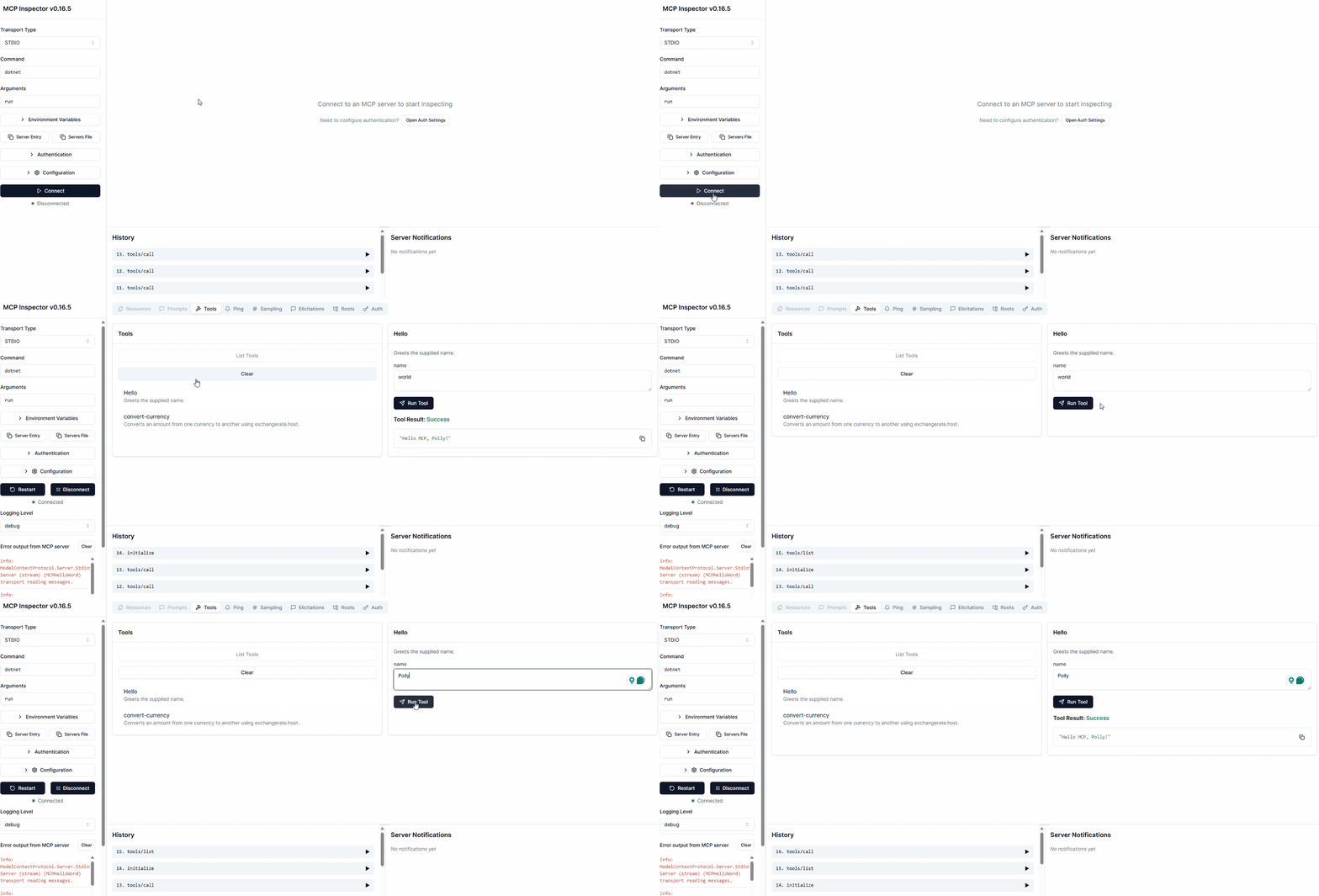
🎉 Congrats, you just built your first MCP server and client interaction.
🧪 Experimenting Further
Let’s add another tool which can perform a more useful currency conversion. The Inspector will always reflect the latest changes.
Add this to Program.cs:
Click List Tools in Inspector.
You should see:
convert-currency (Converts an amount from one currency to another using exchangerate.host.)
Click the tool, and Inspector shows its input schema (name).
Call a tool
Enter input:
from: USD
to: INR
amount: 10
Click Run Tool.
Expected output:
10 USD = 880.5190 INR (rate 88.051898 @ 2025-09-03 16:24:06Z)Yeppy! You just added a new tool and called it via Inspector. The same works with any MCP-aware client, including LLMs (which we’ll cover in Part 2).
🧠 Understanding the Flow
Here’s what happened:
Inspector (the client) connected to your server via STDIO.
Client asked: “What tools do you support?” → Server responded with schemas.
Client presented the tool in a UI form.
You provided inputs.
Inspector called the tool via MCP messages.
Server returned a structured JSON response.
👉 Unlike a REST API, the client didn’t need hardcoded knowledge of your server. It discovered everything dynamically.
🎉 What’s Next?
Now you know how MCP works:
-
Servers expose tools.
-
Clients discover and call them.
-
The difference from APIs is in built-in discovery, schema, and transport flexibility.
But the why is still missing.
- Why should you care about MCP when you already have APIs?
- Why is it particularly exciting for LLMs?
👉 That’s what we’ll cover in Part 2:
-
Why MCP exists
-
How it unlocks LLM integration
-
A demo where we connect your MCP server to an LLM client
Stay tuned—it gets fun when the AI enters the scene! 🚀
Happy coding 🍀!